Choose the option that works best for you
Start a live chat and get real-time help from our support team. Share your question or concern and we'll get things sorted out on the spot.
By using this chat, you agree to our Privacy Policy.
Available Monday–Friday, 03:00–19:00 UTC
Online •
We're always happy to help. Submit a ticket, share your question or concern, add any relevant details, and our support team will resolve it as quickly as possible.
Thank you, your request has been successfully submitted.
We will get back to you as soon as possible.
Slideshow
The section allows you to add slides with an image, heading, and text.
- Use the Layout selector to switch between Overlay or Split screen layouts.
- With Desktop aspect ratio and Mobile aspect ratio you can set ratios for the entire section on desktop and mobile devices.
- You can also set text alignment using the available options.
- In the Slider options you can configure effects such as looping, parallax, autoplay with duration, and pagination.
- You can also set a custom cursor for the section.
Slide options
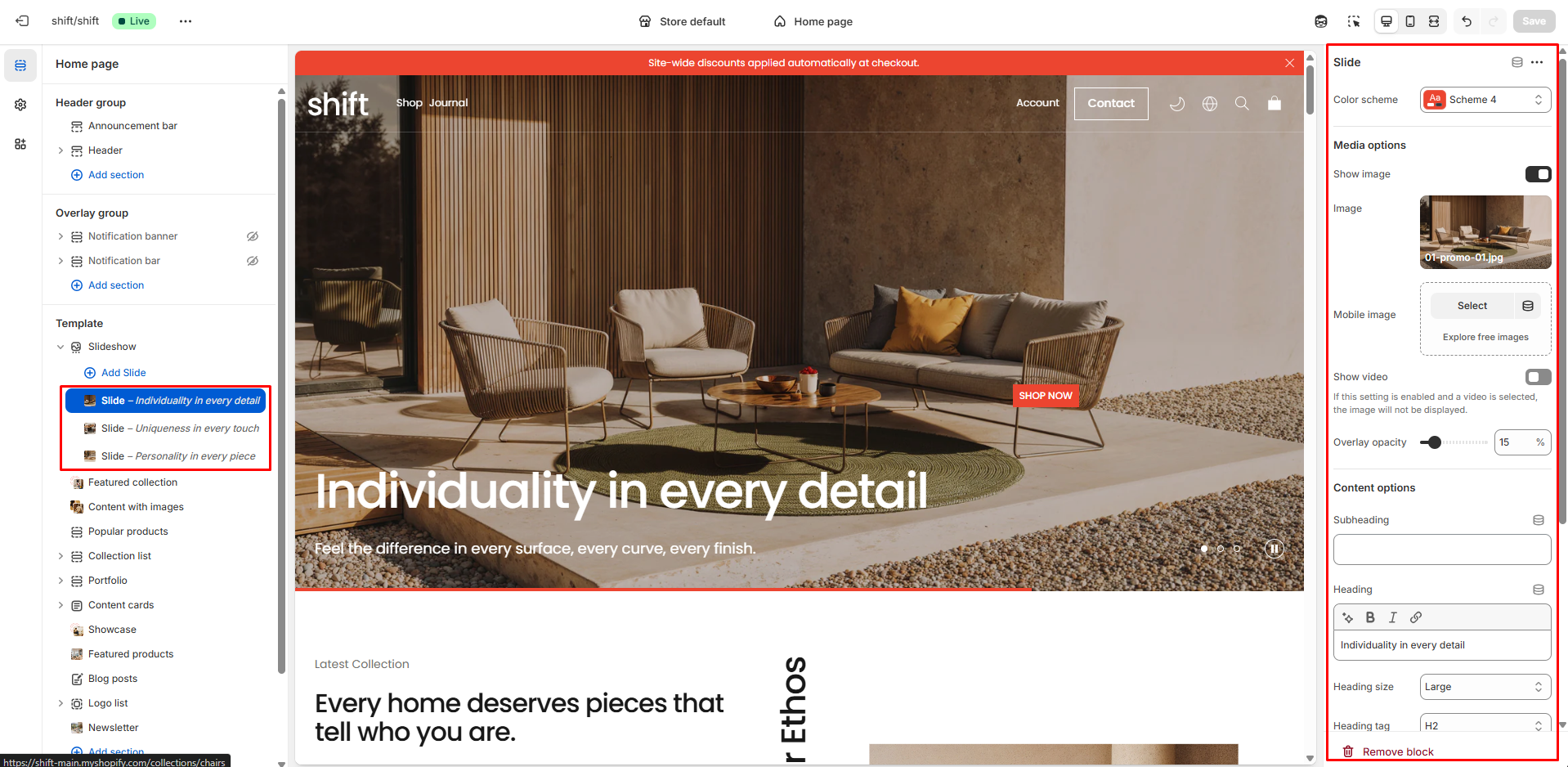
- Color scheme allows you to change the color scheme of the slide.
- In the Media options section you can choose the media type for the slide: Image or Video. If Image is selected, you can also specify a dedicated Mobile image.
- In the Content options section you can add and customize the Subheading, Heading, Description, and Button.
Support
Still Have Questions?
Get a reply within 15 minutes, any hour, every business day, even during your trial.
Live Chat
Online •
Instant Help from Support Team